
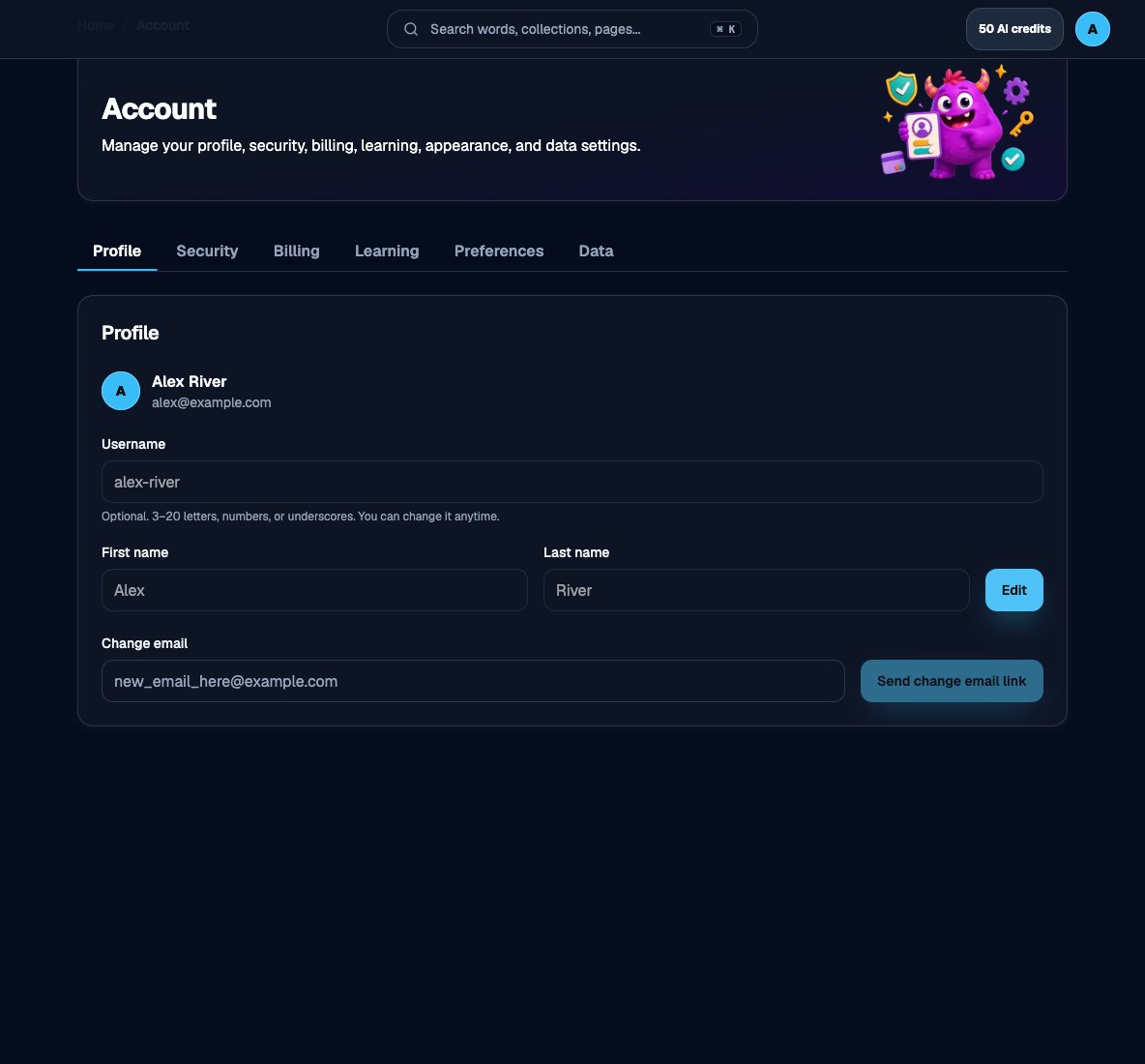
Profile tab with username, first name, last name, and change email
Username, first name, and last name
1
Open Account → Profile
Go to Account. The Profile tab is selected by default.
2
Edit your details
Choose Edit if you see it, then update the fields:
- Username — Optional public handle. 3–20 letters, numbers, or hyphens, with no consecutive hyphens (
--). Leave it blank if you do not want one. You can change it later. If the name is taken or reserved, pick another. - First name and Last name — Optional. These appear on your account identity in the app. You can save one, both, or neither.
3
Save
Choose Save. You should see a confirmation that the profile updated. Cancel (or Reset) discards unsaved edits.
Change email
On Profile, use Change email (or Add email if the account does not have one yet).1
Enter the new address
Type the email you want to use, then choose Send change email link.
2
Confirm from the inbox
Open the message at the new address and follow the confirmation link. Until you confirm, keep using the current email to sign in.
Appearance and preferences
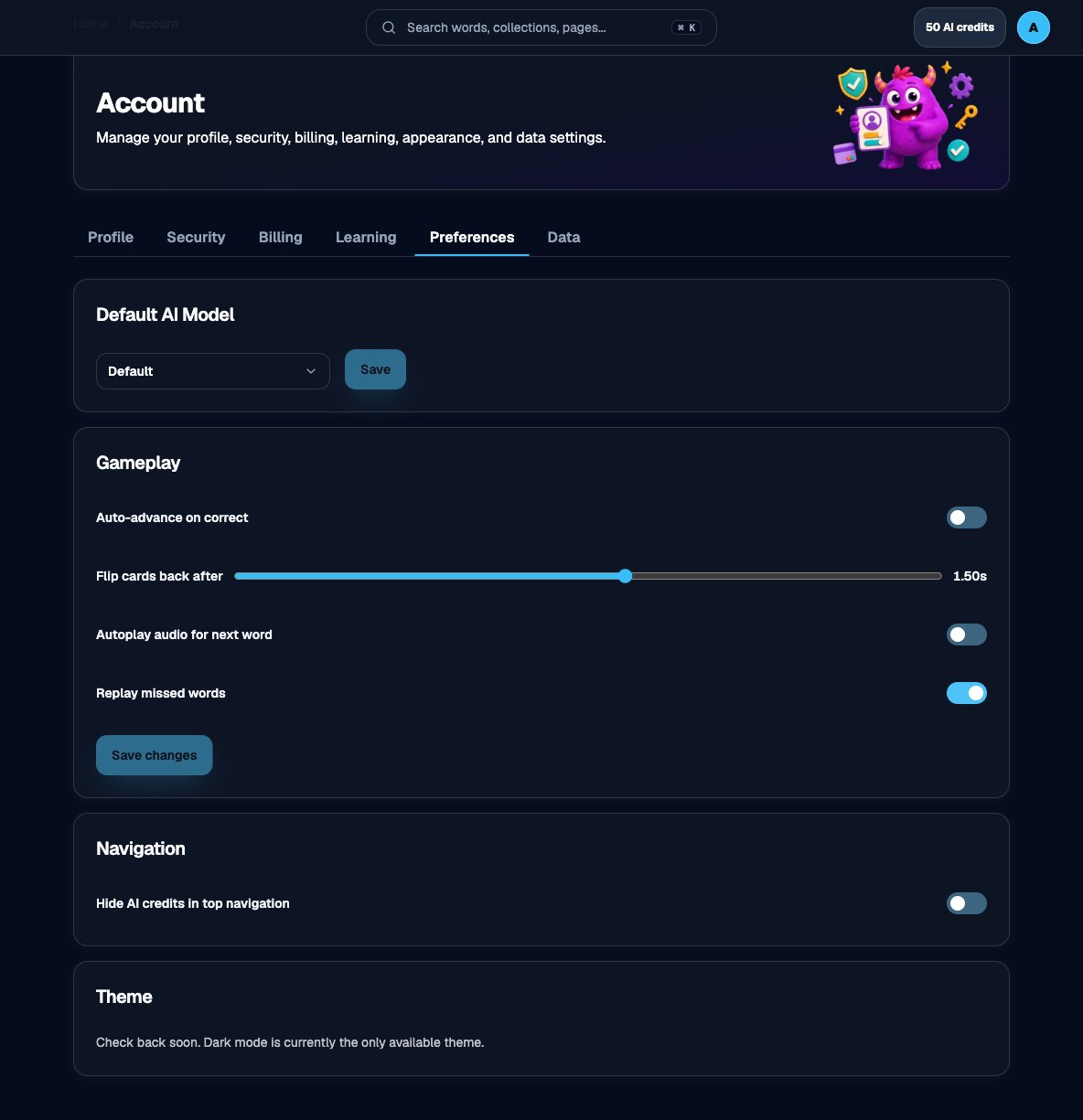
Preferences tab, including AI model, gameplay, navigation, and theme