
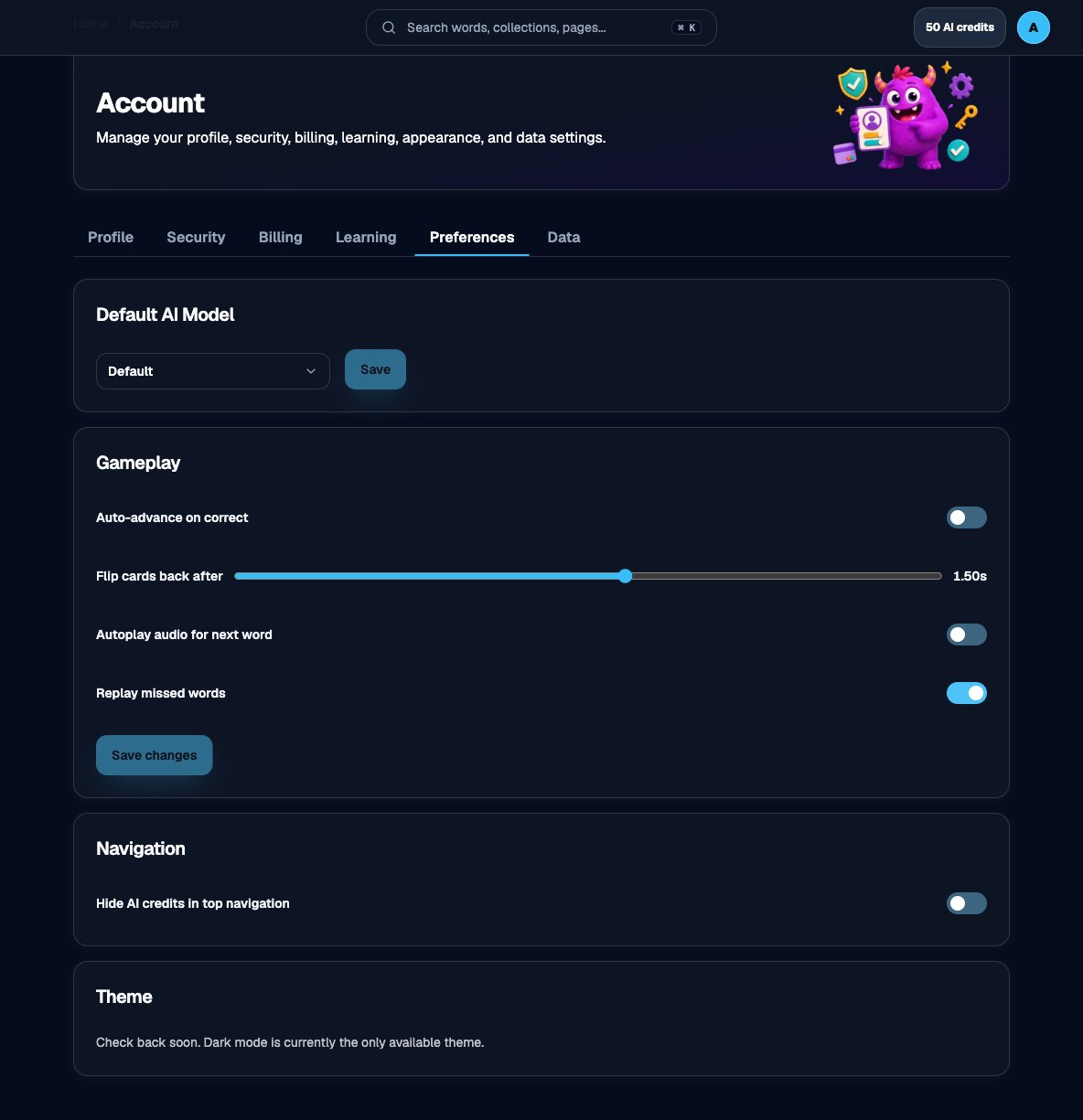
Default AI model on Account > Preferences
1
Open an AI practice activity
Use Fill in the Blank, Context Detective, Synonym Sprint, Antonym Challenge, Synonym Match, or Opposite Match. See Which games use AI credits.
2
Open the AI model selector
On setup or Quick Play, open the model control. Default is the system-selected pool.
3
Choose an available model
Eligible screens may list OpenAI, Google, Anthropic, xAI, or Kimi models. If the picker is locked, you are out of credits.
4
Start the activity
The session uses your selection for delivered prompts. Each delivery spends one credit.
Set a lasting default on Account → Preferences. Session setup can still override it for one game.